What it is and who it's for
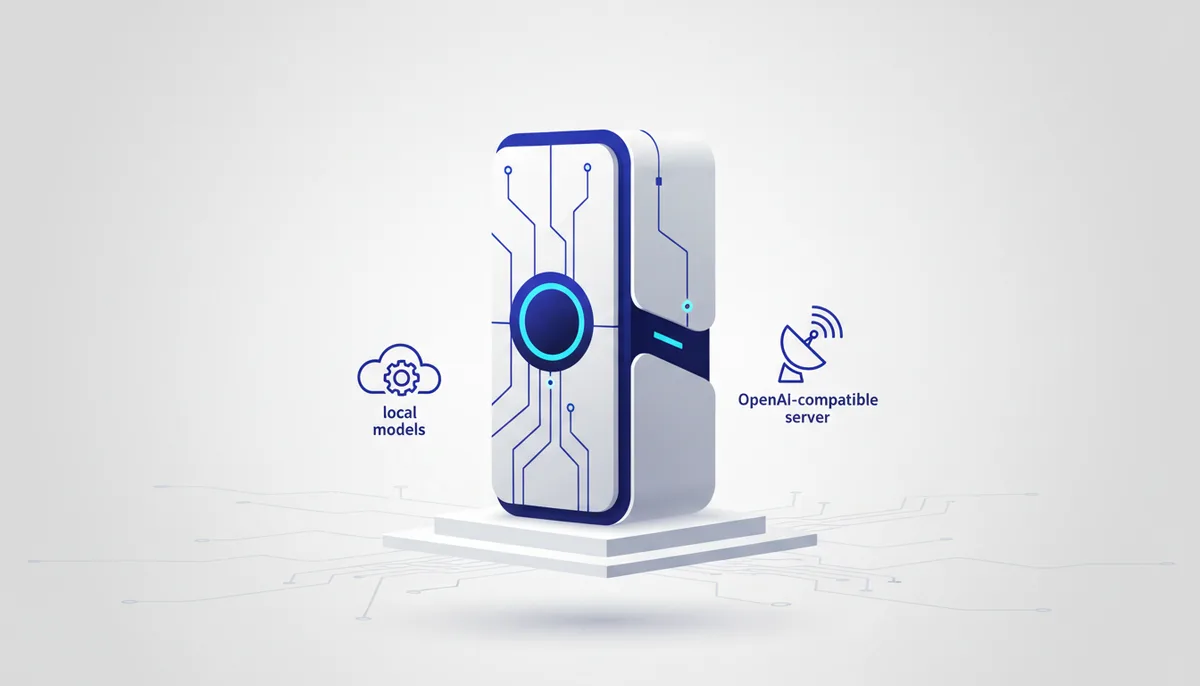
LM Studio is a desktop app (Windows/macOS/Linux) that turns running open LLMs locally into a couple of clicks: find a model in the catalog, download it, chat, spin up a local API. For beginners and privacy-minded users who find Ollama's terminal intimidating but want AI without the cloud. What sets it apart: a friendly GUI that tells you which model will actually fit your hardware.
Key features
- Built-in search and downloads of models from Hugging Face right inside the app.
- A compatibility indicator: it tells you which quantization fits your RAM/VRAM.
- A chat interface with settings for the system prompt, temperature and context.
- A local OpenAI-compatible server behind a single toggle — for integrations.
- GPU acceleration and Apple Silicon support; works fully offline.
- Load several models and switch between them quickly.
How to start in 5 minutes
- Download the installer for your OS from lmstudio.ai and run it.
- On the Discover tab, find a model (Llama 3.2 or Qwen, say), pick a suitable quantization and hit Download.
- Go to Chat, select the model — and start talking. For the API: the Developer/Local Server tab → Start Server (it comes up at
http://localhost:1234/v1).
When to take it, when not to
- ✅ Take it if: you want local AI without the command line, with a clear way to pick a model for your hardware.
- ✅ Take it if: you need a quick local OpenAI endpoint to test an app offline.
- ❌ Don't take it → "Ollama" is better if you're automating, deploying to a server or wiring it into CI — its CLI and headless mode are more convenient there.
- ❌ Don't take it → "OpenRouter"/"Groq" is better if you need top-tier models or speed that local hardware can't reach.
The honest price
Free for personal use; for work there are separate terms — check the site. Your only costs are hardware (RAM/VRAM) and electricity. Exact numbers and licensing details are on the provider's side and change over time.
Gotchas
- The app itself isn't open source (unlike the models inside it) — that matters if you have strict licensing requirements.
- Big models still hit the VRAM wall; the indicator helps, but it doesn't work miracles.
- The GUI eats resources — on a weak machine you'll notice it on top of the model itself.
- Answer quality equals the quality of the open model you picked, and it doesn't reach the cloud frontier.
🤖 Prompt accelerator
"I've installed LM Studio on
, I have of RAM and a <MODEL/none> GPU. Which open model and which quantization (Q4_K_M / Q8 etc.) should I download for the task ? Explain how to read the indicator to tell whether a model will fit, which parameters (context, temperature) to set, and how to turn on the local server so I can call the model from <Python/Node>."