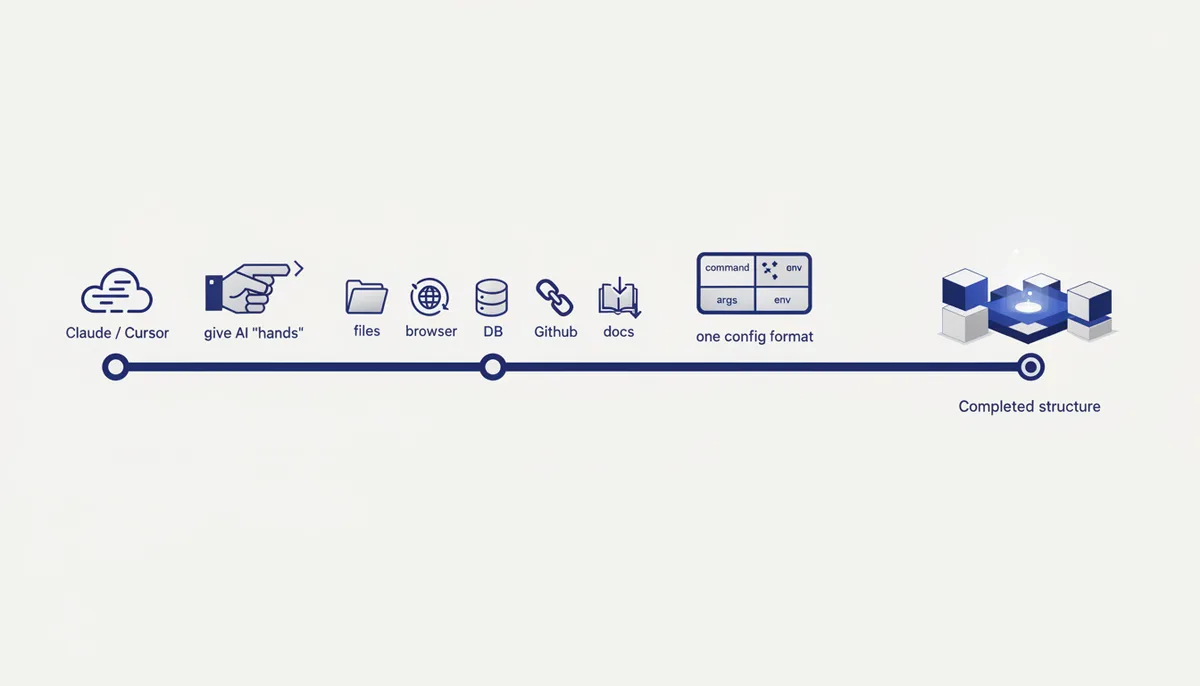
MCP (Model Context Protocol) is an open standard: you connect a "tool server" and the AI can use it (read files, open a browser, query a database, pull docs). The config is almost identical across clients — an
mcpServersobject withcommand/args/envfields. Commands verified against the official Claude Code docs.
🧭 The big picture
Why you need this. By default an AI can only talk — it doesn't see your files, doesn't open a browser, doesn't know current documentation and can't reach your database. MCP gives it hands and eyes: you connect a tool server and the AI starts actually doing things instead of paraphrasing whatever you pasted in.
What you end up with: an AI that reads and edits your project files itself (Filesystem), pulls up-to-date library docs (Context7), opens a browser and checks web flows (Playwright), works with your repository and PRs (GitHub), and queries the database (Postgres, preferably read-only).
The key idea — one format for everything. Claude Code, Claude Desktop, Cursor — a server is described the same way everywhere: what to launch it with (command), with which arguments (args) and which secrets in the environment (env). Learn it once and you can connect it to any client.
💡 Most servers run through
npx(you need Node.js LTS — nodejs.org) ordocker(you need Docker). Install at least Node up front.
Step 1. Claude Code (CLI) — the fastest route
What we're doing: adding a server with a single claude mcp add command. Important: all flags come BEFORE the server name, then -- separates the server's own command.
# a local stdio server (via npx):
claude mcp add --transport stdio playwright -- npx -y @playwright/mcp@latest
claude mcp add --transport stdio context7 -- npx -y @upstash/context7-mcp

# a remote HTTP server (the recommended transport for cloud servers):
claude mcp add --transport http sentry https://mcp.sentry.dev/mcp

# with an environment variable (a secret/key) — the --env flag goes BEFORE the name:
claude mcp add --transport stdio --env AIRTABLE_API_KEY=YOUR_KEY airtable -- npx -y airtable-mcp-server
Managing and checking:
claude mcp list            # list of servers and their status
claude mcp get context7    # details of a single server
claude mcp remove context7 # remove it
How to tell it worked: claude mcp list shows the server as "connected" (green). Inside Claude Code, type /mcp — you'll see the server and how many tools it has. For cloud servers, /mcp runs the OAuth login in your browser.
Scope (--scope, the flag goes BEFORE the name):
--scope local(the default) — this project only, private (stored in~/.claude.json).--scope project— shared with the team, written to.mcp.jsonin the repository root (committed to git).--scope user— across all your projects.
Common mistakes:
- Wrong order —
claude mcp add playwright --transport stdio -- ...won't work. Flags (--transport,--env,--scope,--header) go strictly BEFORE the name, and--goes before the server's command. command not found: claude— the Claude Code CLI isn't installed. Install it and checkclaude --version.npxisn't found → no Node.js. Install Node LTS.- A project server from
.mcp.jsonsits at⏸ Pending approval— runclaudeinteractively and confirm it (that's the protection against someone else's servers in a repo).
Step 2. Claude Desktop — through a config file
What we're doing: editing a JSON file (Settings → Developer → Edit Config, or directly).
- macOS:
~/Library/Application Support/Claude/claude_desktop_config.json - Windows:
%APPDATA%\Claude\claude_desktop_config.json
{
  "mcpServers": {
    "filesystem": {
      "command": "npx",
      "args": ["-y", "@modelcontextprotocol/server-filesystem", "/Users/you/Desktop", "/Users/you/Projects"]
    },
    "context7": {
      "command": "npx",
      "args": ["-y", "@upstash/context7-mcp"]
    }
  }
}
How to tell it worked: after a restart, a tools/"hammer" icon appears in the chat window and the server is visible in settings. Ask it to "read the files in folder X" — Claude will actually list them.
Common mistakes:
- You didn't fully restart. You need an actual Quit (Cmd+Q / exit from the tray), not just closing the window — otherwise the server isn't picked up.
- Broken JSON (an extra or missing comma) → the config isn't read and there are no servers. Check it with a JSON validator.
- On Windows a path in
argswith single\breaks — escape it as\\in JSON, or use/.
Step 3. Cursor — same format, its own file
What we're doing: dropping the same mcpServers JSON into Cursor's file.
- Per project:
.cursor/mcp.jsonin the repository root. Globally:~/.cursor/mcp.json. - The structure is the same —
command/args/env. If a server is defined both in the project and globally, the project one wins.
{
  "mcpServers": {
    "github": {
      "command": "docker",
      "args": ["run", "-i", "--rm", "-e", "GITHUB_PERSONAL_ACCESS_TOKEN", "ghcr.io/github/github-mcp-server"],
      "env": { "GITHUB_PERSONAL_ACCESS_TOKEN": "<YOUR_TOKEN>" }
    }
  }
}
How to tell it worked: in Settings → MCP the server is green and the tools show up in the list. The agent in Cursor can use them.
Common mistakes:
- The server is grey / doesn't start — Docker/Node isn't installed, or there's a typo in
args. - The tool ceiling: Cursor limits how many tools can be active across all MCP servers at once. Connect too many and some tools silently drop off. Keep only the servers you need.
Step 4. A basic starter set of servers
- Filesystem — project files (read/write).
- Context7 — up-to-date library docs (fewer API "hallucinations").
- Playwright — browser/tests (verify a web flow actually works).
- GitHub — repositories/PRs/issues.
- Postgres — the database (grant read-only access).
How to tell it worked: these 3–5 servers cover 90% of development tasks; don't chase quantity — more servers means more noise and more risk.
🧠 For the senior
- Transports:
http(a.k.a.streamable-http) is the recommended one for cloud servers; SSE is deprecated, don't pick it for anything new. For servers that push events there's WebSocket (ws) — only viaclaude mcp add-json. - JSON import:
claude mcp add-json <name> "{...}"adds a whole server from JSON (handy for copying out of a server's docs);claude mcp add-from-claude-desktopimports from Desktop. - Variables in
.mcp.json:${VAR}and${VAR:-default}are supported incommand/args/env/url/headers— you share the config with the team and each person's secrets are substituted from their own environment. - OAuth:
/mcpstarts the flow; for servers without Dynamic Client Registration —--client-id/--client-secret/--callback-port. Tokens live in the keychain, not in the config. - Tool Search: in Claude Code, MCP tools are loaded lazily by default (
ENABLE_TOOL_SEARCH) — you can keep many servers around without bloating the context; mark the critical ones withalwaysLoad: true. - Scope hygiene: team servers —
--scope project(.mcp.jsonin git, but WITHOUT secrets in it); personal ones with keys —local/user.
⚠️ Warnings (security)
- An MCP server executes code and talks to the network. Only install ones you trust (supply chain): check the publisher of the package/image, don't run random servers off the internet. This literally gives third-party code access to your machine.
- Prompt injection. A server that pulls external content (web, email, tickets) can bring in a hidden instruction like "delete…/exfiltrate the secrets…". Don't let the agent execute that blindly; keep confirmations on dangerous actions.
- Secrets go in
env/the keychain, not in code and not in a shared.mcp.json. For databases — minimal privileges (read-only) so the agent can't wipe anything. - A project
.mcp.jsonrequires approval — don't approve servers from someone else's / a cloned repository without looking.
🆘 Rescue prompt
Help me connect an MCP server, explain it step by step.
SERVER: <name, e.g. Filesystem / Context7 / Playwright / GitHub / Postgres>.
CLIENT: <Claude Code / Claude Desktop / Cursor>. MY OS: <macOS / Windows>.
I'M STUCK ON: <the server isn't visible / an error / I don't know where to put the config>.

What to do:
1) Give me the exact `claude mcp add` command OR ready-to-paste config JSON with the RIGHT file path for my OS.
2) Explain the command/args/env fields in plain words.
3) How to verify the server is visible (`claude mcp list` / `/mcp` / the icon in the client).
4) Warn me about security: trusting the server, secrets in env, read-only for the database.
💎 Depth and value
- MCP turns a chatterbox into a worker. The difference between "an AI that gives advice" and "an AI that does the work" is exactly MCP. Once you've given the agent hands, you stop copying data back and forth — it works inside your environment on its own.
- One standard, a whole ecosystem. MCP has become the common protocol: hundreds of ready-made servers (GitHub, Sentry, Figma, databases, browsers) all connect the same way. Master the
command/args/envformat and the entire arsenal opens up at once. - It's the foundation of agents and autonomy. Vibe coding, automated browser tests, a team of AI agents (Laskoff OS) — all of it rests on MCP. Knowing how to safely hand an AI its tools is the key skill separating "played with a chatbot" from "built myself an autonomous team".