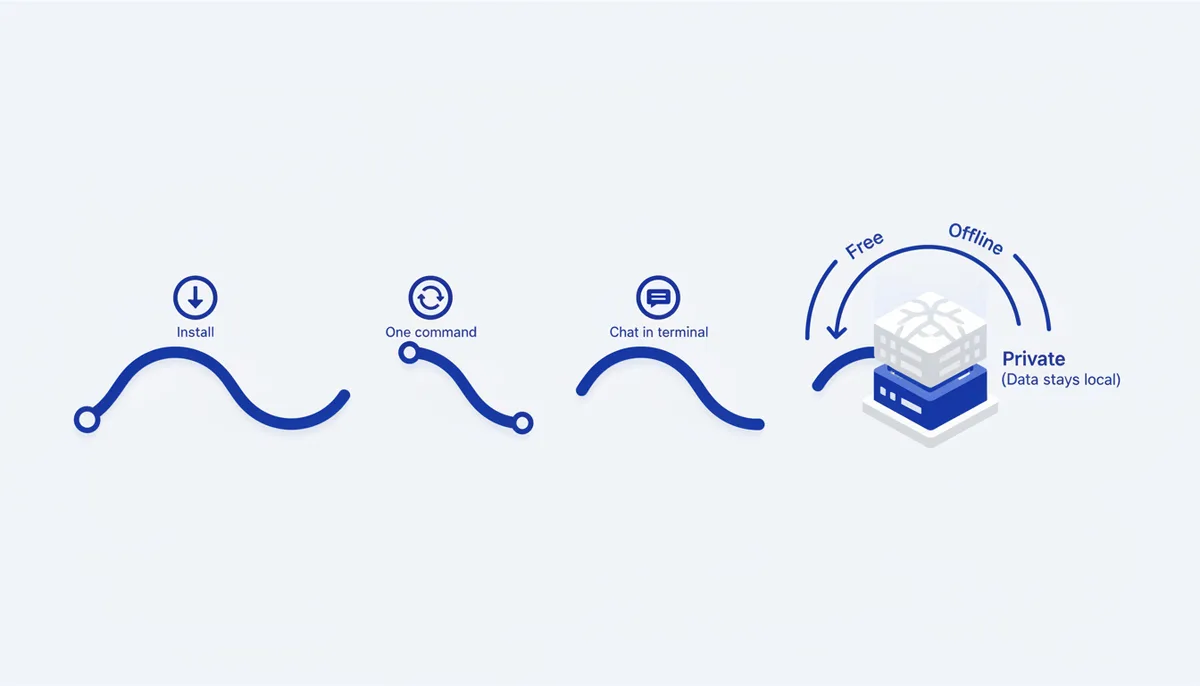
Ollama runs open models (Llama, Gemma, Qwen, DeepSeek, Phi…) locally, with a single command. You pay nothing, you don't need the internet once the model is downloaded, and the data stays with you. Commands verified against the official
docs.ollama.com.
🧭 The big picture
Why would you want a local model? Three reasons: free (no paying per token), private (your text doesn't go to someone else's servers — critical for work documents, code and personal material), offline (works without internet, on a plane or a train). What you end up with: your own AI chat in the terminal and a local API at http://localhost:11434 that you can wire up to a code editor, a graphical chat client or your own script.
Straight talk about hardware. The whole model loads into memory. A rough rule: the model's size in gigabytes ≈ how much RAM (or video memory) it needs on top of the OS.
- ~1–3 billion parameters (
:1b,:3b) — will run on a laptop with 8 GB RAM, though it's simpler-minded. - ~7–8 billion (
gemma3,llama3.2, the defaults) — comfortable from 16 GB RAM, noticeably faster with a graphics card (GPU). - 30B+ — needs 32–64 GB and/or a strong GPU.
💡 Not enough memory and the model will crawl or refuse to start. Take a smaller variant (
gemma3:1b,llama3.2:1b) — that's perfectly normal for a start.
Step 1. Install Ollama
What we're doing: installing the program that downloads and runs models.
- macOS / Windows: download the installer from https://ollama.com/download → run it → done (an Ollama icon appears in the tray — the background server is already running).
- Linux (one command, the official installer):
curl -fsSL https://ollama.com/install.sh | sh
How to tell it worked: in the terminal run
ollama --version
you see a version (e.g. ollama version is 0.x.x) — the installation went through.
Common mistakes:
command not found: ollamaright after installing on Linux — restart the terminal (to refresh PATH) or check that the service is running:ollama servein a separate window.- On Windows there's no icon / the command isn't found — sign out and back in, or launch Ollama from the Start menu once.
Step 2. Run a model (it downloads itself on first launch)
What we're doing: starting a chat. On the first call the model downloads automatically, and after that it starts instantly from cache.
ollama run gemma3        # a light but capable model from Google — a good start
# other good options:
ollama run llama3.2      # compact Llama from Meta
ollama run qwen3         # strong and multilingual
ollama run deepseek-r1   # a "reasoning" model (shows its train of thought)
ollama run gemma3:1b     # the smallest one — if memory is tight
How to tell it worked: first there's a download progress bar (once), then a >>> prompt appears. Type straight into the terminal — the model answers. To leave the chat: the /bye command (or Ctrl+D).
Common mistakes:
- The download hangs or crawls — models weigh gigabytes, so the first time is slow (depends on your connection). After that it's instant.
- The computer is choking and the answer creeps out letter by letter — the model is too heavy for your RAM. Exit (
/bye) and take a smaller one:ollama run gemma3:1b. Error: model requires more system memory— it's telling you outright there isn't enough memory; take a smaller model.
Step 3. Manage models (disk/memory)
What we're doing: downloading, listing and deleting — so you don't fill up the disk.
ollama pull qwen3        # just download it (without running)
ollama ls                # which models are downloaded and how big they are (synonym: ollama list)
ollama ps                # what is loaded in memory RIGHT NOW (running at this moment)
ollama stop gemma3       # unload a model from memory
ollama rm gemma3         # delete a model from disk (free up space)
How to tell it worked: ollama ls shows a table with names and sizes. After ollama rm the model disappears from the list and disk space is freed.
Common mistakes:
- You wonder where your disk space went — models are big. Clean out unused ones regularly:
ollama rm <name>. ollama rmon the wrong model — the name must match exactly what's inollama ls(including the tag after the colon, e.g.gemma3:1b).
Step 4. Use it from your own code (the local API)
What we're doing: calling the model programmatically — Ollama keeps a local server at http://localhost:11434.
# a simple request (generation):
curl http://localhost:11434/api/generate -d '{"model":"gemma3","prompt":"Hello!","stream":false}'
There's also a chat endpoint, /api/chat, and an OpenAI-compatible one, /v1/chat/completions — many tools (editors, libraries) can be pointed at Ollama simply by swapping the base URL for http://localhost:11434/v1 and supplying any "key":
curl http://localhost:11434/v1/chat/completions -H "Content-Type: application/json" -d '{
  "model": "gemma3",
  "messages": [{"role":"user","content":"Hello!"}]
}'
How to tell it worked: you get back JSON with a response field (for /api/generate) or choices (for /v1/...). If the model's answer text comes back, the API works.
Common mistakes:
connection refusedon 11434 — the Ollama server isn't running. On Linux startollama serve; on macOS/Windows check that the Ollama app is open (the tray icon).- A tool can't see the model — it's sending a name that doesn't exist. Download it first:
ollama pull <name>, and the name must matchollama ls.
💡 If you want a graphical chat instead of the terminal — run Open WebUI (or any client with Ollama support) and point it at the same
http://localhost:11434. You get the familiar "ChatGPT-like" interface, but locally.
🧠 For the senior
- GPU/acceleration: Ollama uses Metal (Apple Silicon) or CUDA (NVIDIA) on its own. Control the number of GPU layers and the context via environment variables and a
Modelfile(PARAMETER num_ctx,num_gpu). - Quantization: tags like
:q4_K_M,:q8_0are the "quality ↔ memory" trade-off. For weak hardware take more aggressive quantization; for quality —q8/fp16, if you have the memory. - Your own models:
ollama create -f Modelfile— you set the system prompt, the parameters and the base model; import GGUF weights from Hugging Face. - A server in production:
OLLAMA_HOST=0.0.0.0exposes the API externally — only behind a reverse proxy + auth (by default the API has no authentication!). Keep it in Docker, cap its resources, don't put 11434 on the open internet. - Embeddings/RAG:
ollama pull nomic-embed-text(ormxbai-embed-large) + a vector index — local search over your own data (see the Obsidian guide).
⚠️ Warnings
- The API has no password by default. Locally on
localhostthat's fine, but don't open port11434to the internet without a reverse proxy and authentication — otherwise anyone can use your model (and your hardware). - Open models != "safe" models. Download models from the official Ollama library or trusted accounts. A custom
Modelfileor a third-party GGUF can contain a malicious system prompt. - Disk. A few large models easily eat tens of gigabytes. Watch it with
ollama ls, clean up withollama rm.
🆘 Rescue prompt
Help me with local AI through Ollama, explain step by step.
MY HARDWARE: <OS: macOS/Windows/Linux>, <how much RAM>, <is there a graphics card and which one>.
MY TASK: <chat / help with code / private work with documents / embeddings for search>.
I'M STUCK ON: <what doesn't work / the error text>.

What to do:
1) Which Ollama model should I take for my task and my hardware so the memory is enough (with the size tag)?
2) Give me the exact install and run commands, step by step.
3) After each one — what should appear and how to tell it's fine.
4) If I run into memory limits — suggest a lighter model.
💎 Depth and value
- Privacy as a superpower. Work correspondence, code under NDA, medical or legal texts — none of it can be poured into a cloud AI. A local model lifts that ban: the data physically never leaves your computer.
- Zero cost for experiments. You can run thousands of requests, tune prompts and build RAG over your own notes — with no token counter and no subscription.
- The foundation of autonomy. A local OpenAI-compatible API turns Ollama into the "engine" for vibe coding (see the corresponding guide), for agents and for your own scripts — with no dependency on someone else's cloud and its limits.