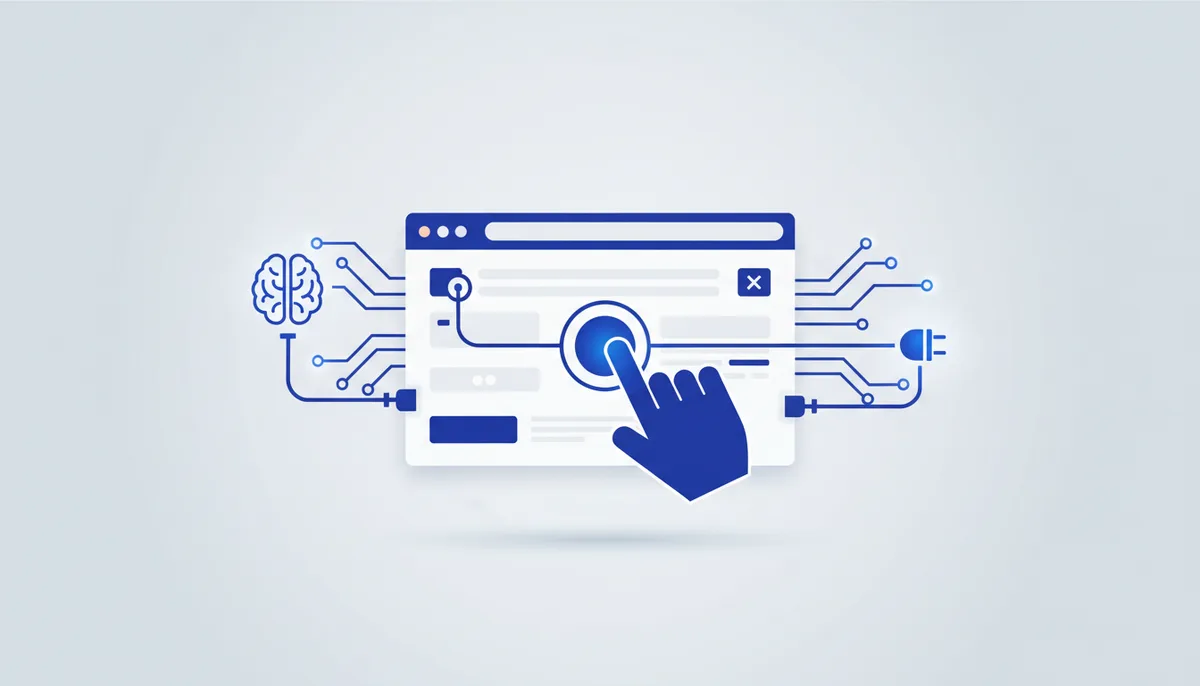
What it gives the AI
The AI gets a real browser: it opens pages, clicks, fills in forms, reads the result and takes screenshots. The key trick is that it works through the accessibility tree (a structured snapshot of the page) rather than pixels, so actions are precise and fast, with no fragile image recognition.
Example: "Check that login works with test@example.com" — the AI opens the page, types the credentials, hits "Sign in" and confirms it landed in the dashboard instead of taking your word for it.
Setup (exact steps)
Claude Code
A local stdio server:
claude mcp add playwright -- npx -y @playwright/mcp@latest
Cursor / Claude Desktop
{
  "mcpServers": {
    "playwright": {
      "command": "npx",
      "args": ["-y", "@playwright/mcp@latest"]
    }
  }
}
Useful flags go into args: --headless (no window, for CI), --browser chrome|firefox|webkit, --isolated (a clean profile for every session).
Usage example
Say: "Open checkout on a mobile viewport and take a screenshot" → the AI sets the mobile size, navigates to the checkout page and returns the image. Or "walk through the whole signup flow and tell me where it breaks" — an actual run, not guesswork.
Security
- Isolation: for untrusted sites, run with
--isolatedand/or--headlessso the AI isn't working inside your logged-in profile with its cookies and passwords. - Prompt injection: the browser opens external pages, and their content can carry malicious instructions. Don't give the server access to sensitive tabs, and don't point it at production admin panels unattended.
- Supply chain: the
@playwright/mcppackage is official, from Microsoft (★33.3k). The first run downloads the browser binaries (npx playwright install).
Gotchas
- The first run pulls down browser engines (hundreds of MB) — budget time and caching for CI.
- In headful mode the AI can wander off inside your real profile; use
--isolatedfor testing. - The tool set is broad (navigation, clicks, network, tabs) — for a small task it's better to trim it so it doesn't bloat the context.